
Understanding Card Types
Swipey offers three types of cards to fit different needs:
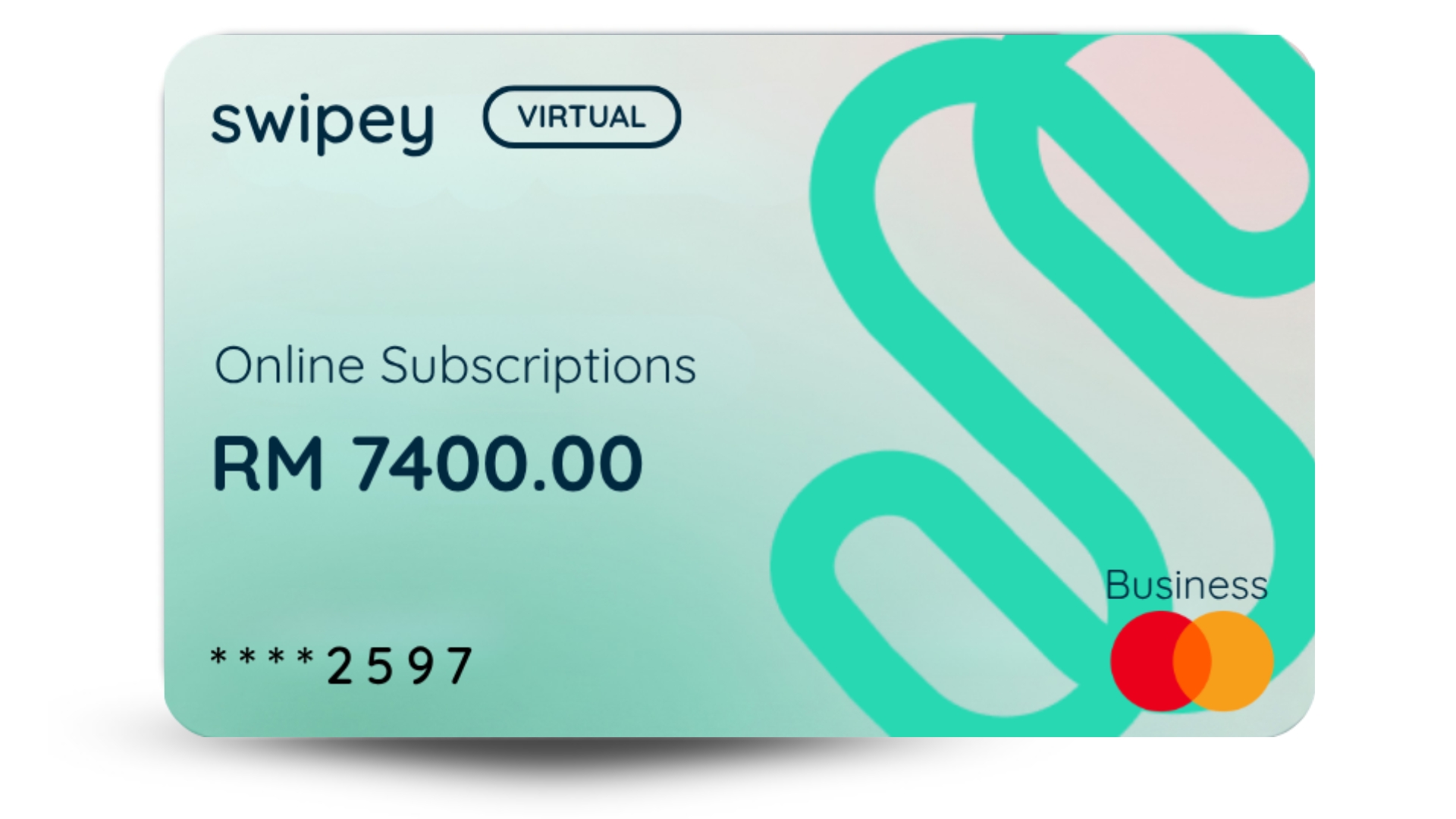
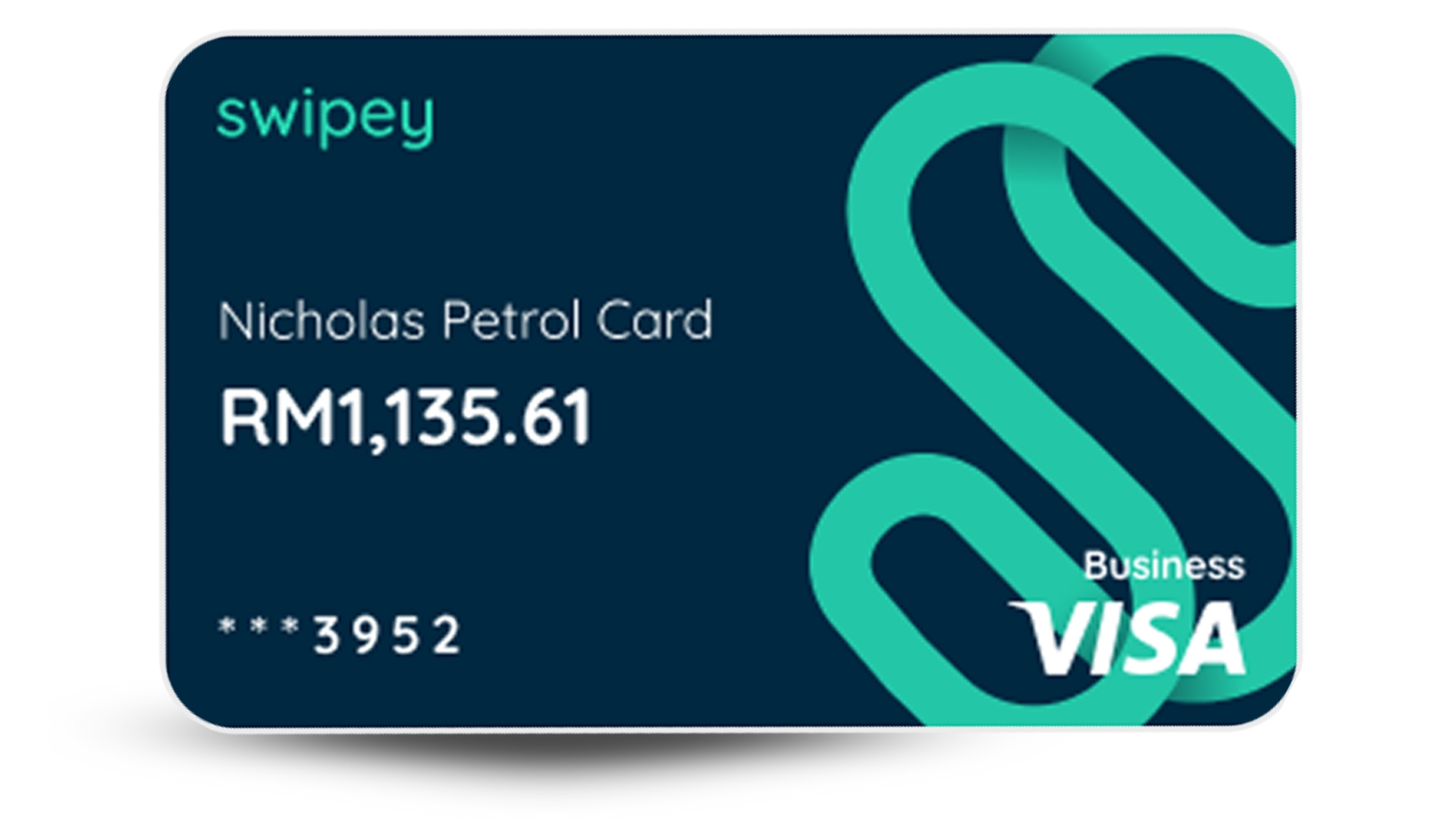
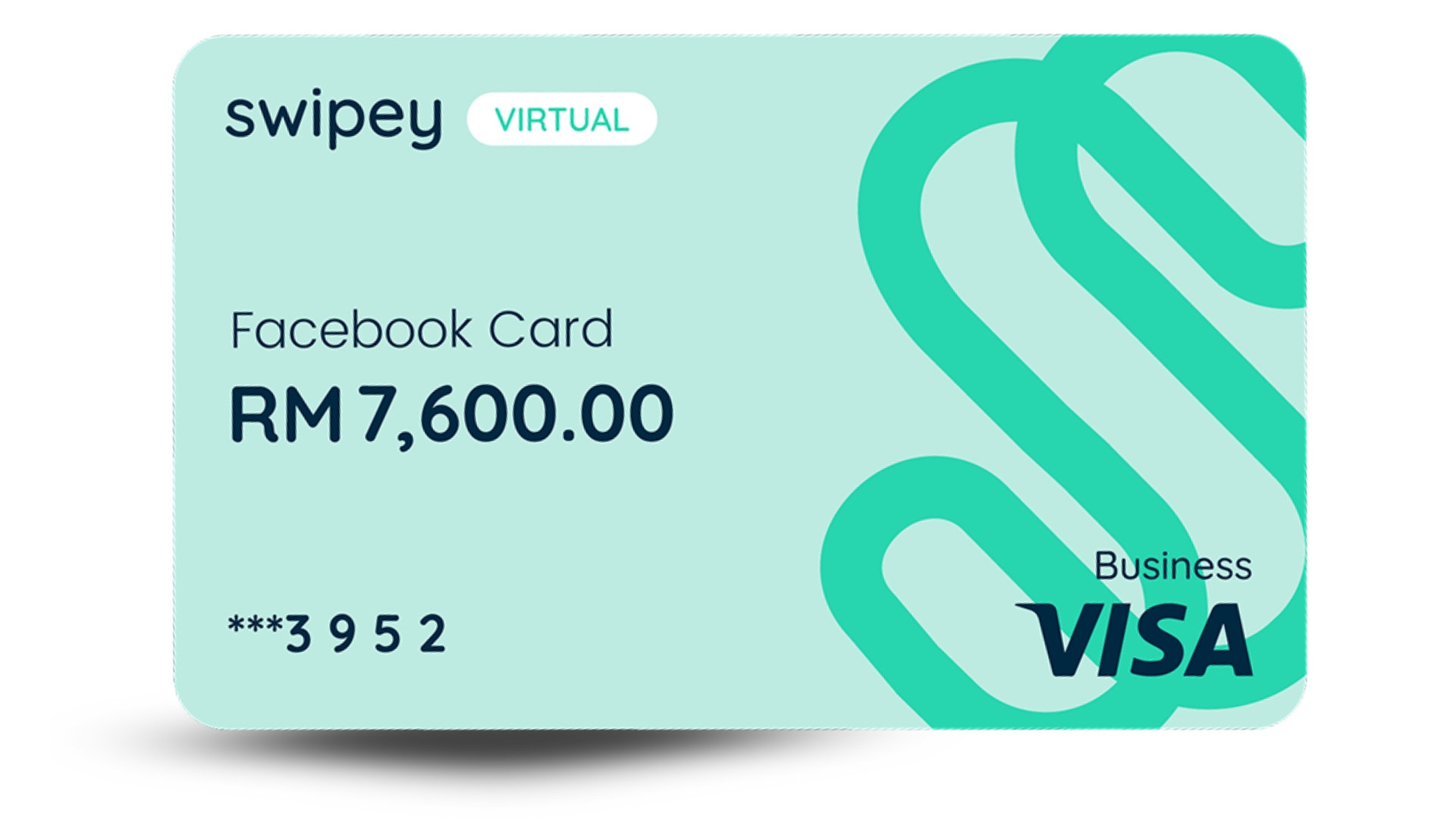
Want to know more about our card types? Learn more here →
Tip: Start with virtual cards for faster setup. You can always order travel cards or assign a Corporate Card later.
Which card do you want to assign?
| 🏢Option A: Corporate CardNo limits, works where prepaid fails | ✈️Option B: Travel CardPhysical card for in-store & travel | 💳Option C: Virtual CardReady instantly, for online payments |
Assign Cards in 2 Simple Steps
You can assign cards to yourself first, then roll them out to your team. Watch the short video below or follow the step-by-step guide:
Option A: Assign a Corporate Card
You'll want this card if:
- Your Google Ads, Meta, or other ad accounts keep declining your prepaid card
- You have subscriptions that require a card these platforms will accept
- You need to make payments that exceed the RM10,000 prepaid transaction limit
Note: The Corporate Card is available on Growth and Plus plans only.
Step 1: Navigate to Cards
👉 Log in to your admin dashboard. From the left menu, click Cards.
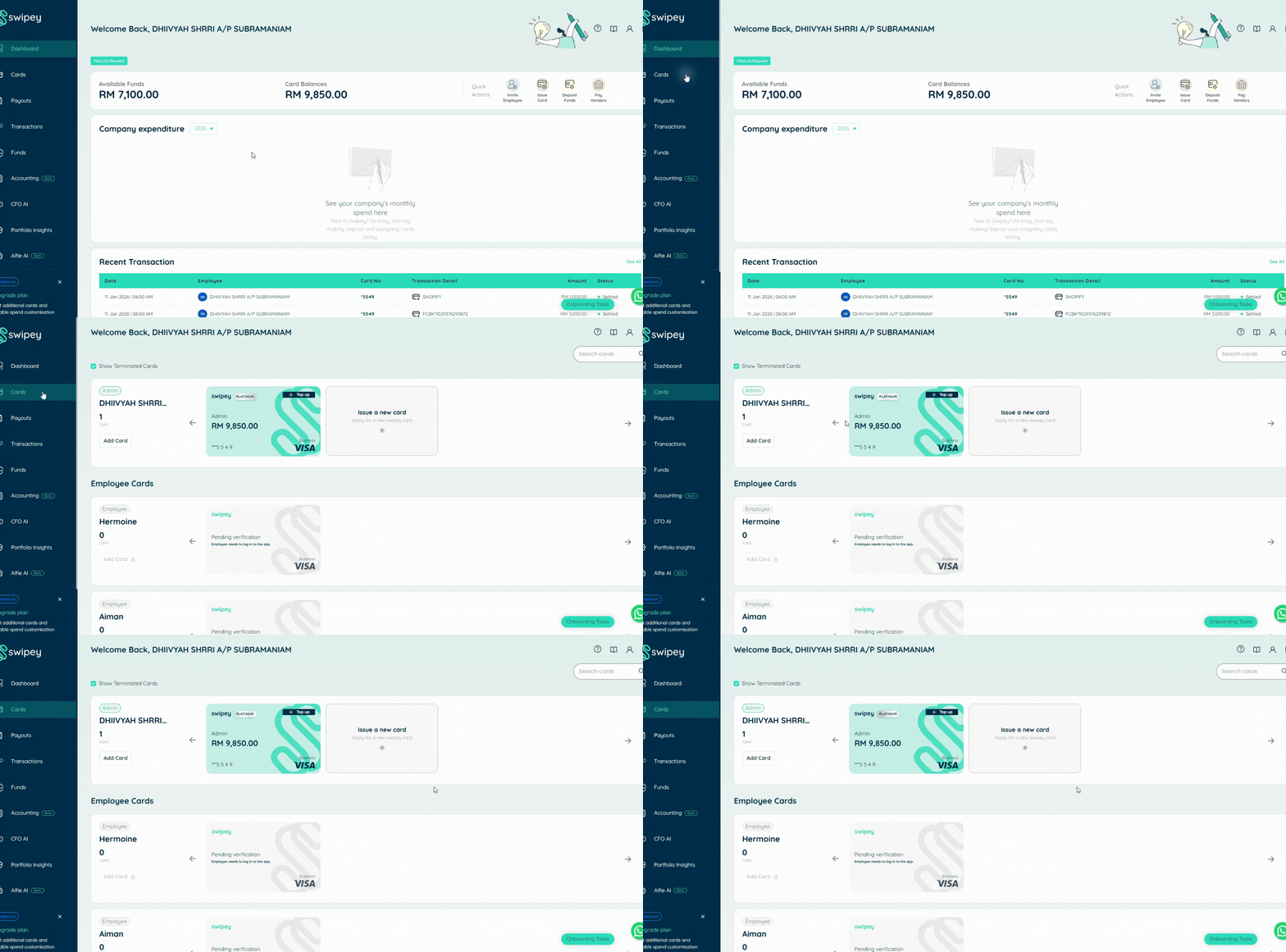
Step 2: Issue the Card
Click Issue a New Card. Fill in the card details:
- Card type: Select Corporate Card
- Spending limit: Set a daily, weekly, or monthly limit
- Card name: Give it a label (e.g., "Founder Card - Ad Spend")
Click Submit. Your Corporate Card is ready instantly in the Swipey mobile app.
Step 3: Verify Card
Log in to your Swipey app to verify your card.
Option B: Assign a Travel Card
Step 1: Navigate to Cards
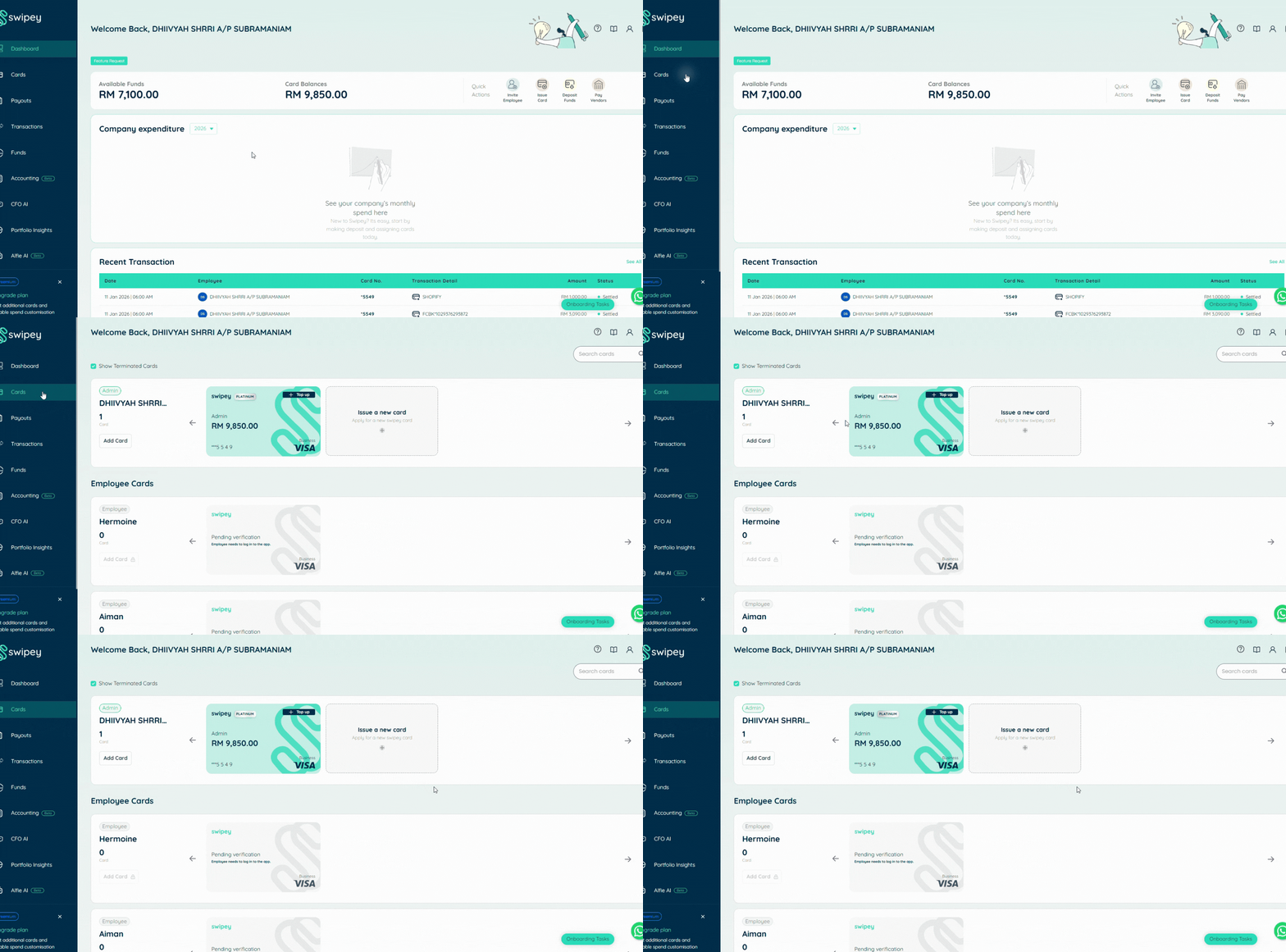
👉 Log in to your admin dashboard. From the left menu, click Cards. Invited employees who have completed verification will appear on the Cards tab.
Can't find your employee?
- If they're not listed, you need to invite them to Swipey first.
- If they appear as "Pending" or "Not Verified," send them this verification guide.
Step 2: Issue a Travel Card for the Employee
Click on the employee's name. Click Assign Card or Issue a New Card.
Fill in the card details:
- Card type: Select Travel (Physical)
- Spending limit: Set a daily, weekly, or monthly limit
- Card name: Give it a label (e.g., "Marketing - Travel & Expenses")
- Merchant restrictions (optional): Block certain merchant categories (e.g., gambling, alcohol)
Click Submit. The travel card will be delivered to the employee's registered address in 7–10 business days.
Option C: Assign a Virtual Card
Step 1: Navigate to Cards
👉 Log in to your admin dashboard. From the left menu, click Cards.
Step 2: Issue Your First Card
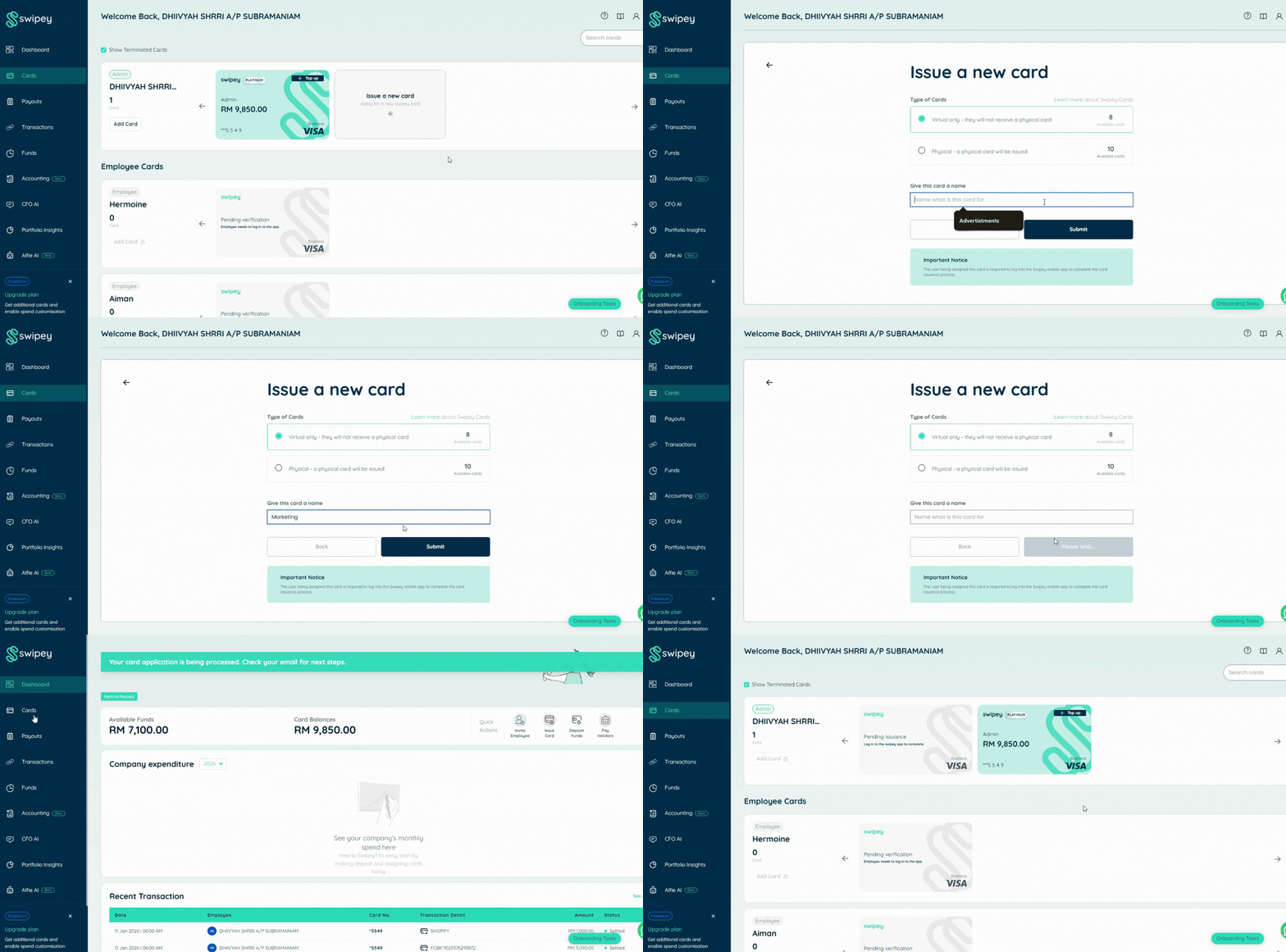
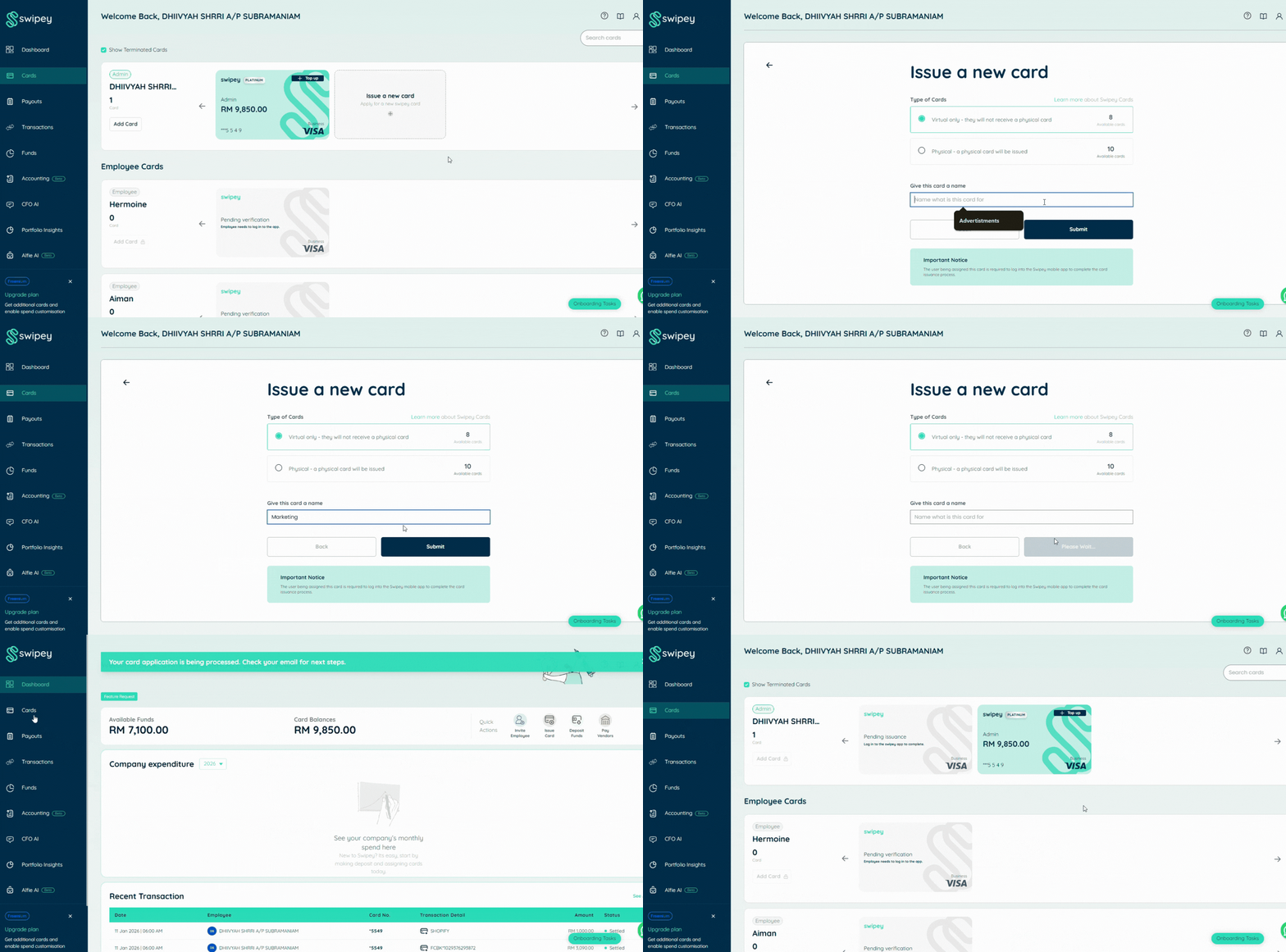
At the top of the Cards page, you'll see your name. Click Issue a New Card. Fill in the card details:
- Card type: Select Virtual
- Spending limit: Set a daily, weekly, or monthly limit
- Card name: Give it a label (e.g., "Founder Card - Online Ads")
Click Submit. Your virtual card is ready instantly in the Swipey mobile app.
Step 3: Verify Card
Log in to your Swipey app to verify your card.
What's Next?
1. Employee receives card access
- Corporate Cards: Instantly available in their mobile app
- Travel Cards: Delivered to the registered address in 7–10 business days
- Virtual Cards: Instantly available in their mobile app
2. Employee can start spending
3. Fund the card. Once the card is funded (you've topped up your company wallet), the employee can use the card within the limits you set. You track everything in real-time.
4. Track every transaction. Every transaction appears instantly in your admin dashboard. You can:
- View spending by employee, card, or merchant
- Download receipts and statements
- Adjust limits or freeze cards anytime
👉 Learn how to fund your master account
Need Help Assigning Cards?
If you're unsure which limits to set or want help deciding who should get a card first:
💬 Chat with us on WhatsApp
📞 Book a 15-minute call and we'll guide you through best practices
Common Questions
How many cards can I issue?
It depends on your Swipey plan:
- Freemium: 1 virtual card per user
- Growth: 3 virtual cards + 1 travel card per user, Corporate Card available
- Plus: 5 virtual cards + 2 travel cards per user, Corporate Card available
👉 View pricing and packages or contact our team for custom plans.
Can I assign multiple cards to one employee?
Can I change the spending limit later?
You can transfer the exact amount needed by the company to the employee card before the spend begins and extra money can be returned to the master account. Changes apply immediately.
What if I need to freeze a card?
Go to Cards → Select card → Change card status (Active/Frozen).
The card stops working instantly. You can unfreeze it anytime. Remember to clawback any remaining money before freezing the card.
What happens if an employee leaves?
Go to Employee Settings → Select employee → Change user status to inactive.
All their cards are automatically frozen and deactivated. No risk of unauthorized spending.
Do I need to assign a card when I invite an employee?
No. Card assignment is optional during the invitation process. You can invite employees first and assign cards later when you're ready.
Can employees create their own cards?
No. Only Admins can issue cards. Employees can only use the cards assigned to them. This keeps you in full control.